AI Agents
Last updated: October 19, 2026
Overview
Delfa's AI agents talk to patients on your behalf by phone, by SMS and on your website through Webchat. Each agent has a type, which is its job (for example Prescreening, Reminder or Routing), and a channel: Voice, SMS or Web Chat. Lead recruiters can review every agent and its conversations on the Agents page.
How Agents Reach Patients
Voice: a cadence's Start Call step places a call with the cadence's voice agent. The cadence then branches on the outcome: Connected, Qualified, Unqualified, Not Prescreened or Not Connected.
SMS: the SMS agent chosen in a cadence's Cadence Settings answers the patient's replies. The cadence pauses while the patient is texting with the agent.
Web Chat: a Web Chat agent talks to visitors on your website. A lead recruiter can copy the code to add it to a site (see below).
Agents do not call or text patients who have revoked consent for that channel or are marked Do Not Contact. See "Cadence Process" for how to build cadences that use agents.
Reviewing Your Agents
Open Agents in the sidebar. Only lead recruiters see this page.
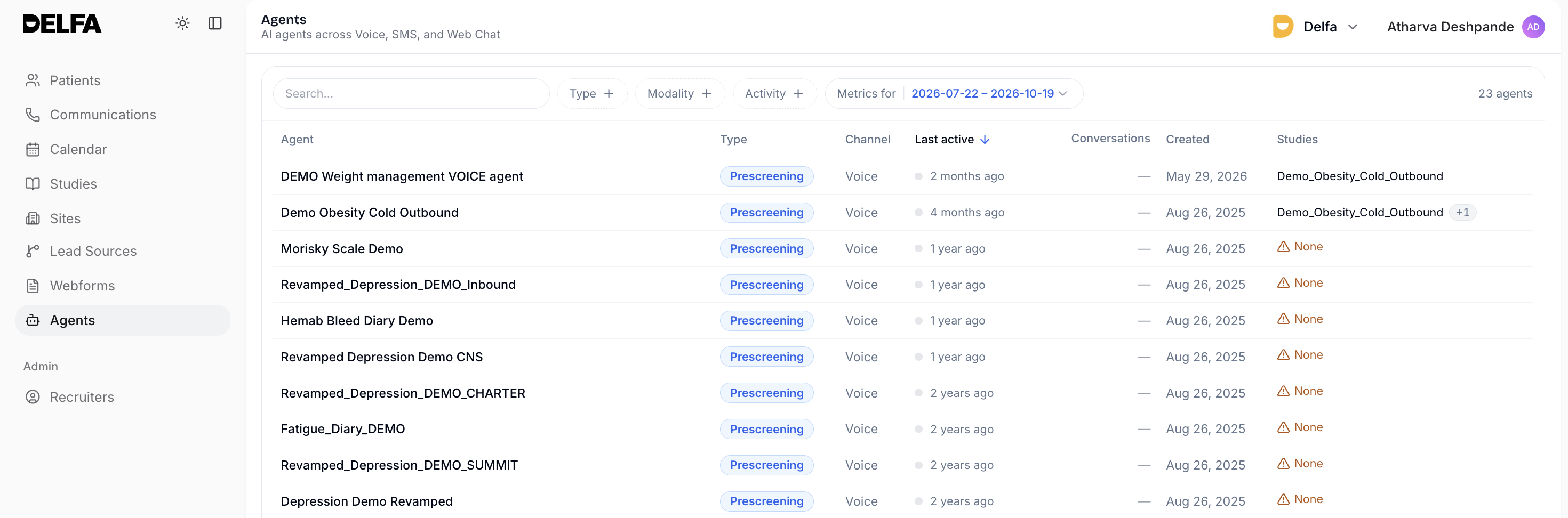
Use the filters to narrow the list by Type, Modality or Activity (Active this week, Idle or Never active). Use Metrics for to choose the date range for conversation counts.
The table shows each agent's Type, Channel, Last active, Conversations, Created and Studies.
Click an agent to open its details.
Agent Details
The header lists the studies the agent covers.
Total Conversation Time shows how long the agent has spent talking with patients.
Communications lists the agent's calls and chats. Filter by phone number, Outcome, Lead Source, Direction, Duration or Date.
For a Web Chat agent, click Copy Webchat embed code and give the code to whoever manages your website.
To add studies to an agent or change what it asks, see "Can I add new studies to an existing Delfa AI agent?".
Recruiter Callbacks
During a conversation, an agent can create a callback task for a recruiter based on what the patient said. This is controlled per cadence by Generate recruiter callbacks in Cadence Settings, which is on by default. Turn it off if the agent already books prescreening calls, or your team cannot follow up on callbacks.
Best Practices
Check Never active and Idle agents regularly. Confirm they are still meant to be in use.
Review a sample of conversations in Communications each week, filtered by Outcome.
Keep Generate recruiter callbacks on only if someone follows up on callback tasks.