User Roles and Permissions
Last updated: November 3, 2026
Overview
Every person in your Delfa organization has one role. The role decides which pages they see, which patients they can work, and which settings they can change. Admins choose a role when they invite someone and can change it later.
Roles
Role | Who it is for | What they can do |
|---|---|---|
Recruiter | Staff who contact and screen patients | Works patients at their assigned sites and studies. |
Lead recruiter | Team leads and site managers | Recruiter access plus team assignment and reporting tools, sites, lead sources, webforms and agents. |
Admin | The people who run Delfa for your organization | Full access, including organization settings and user management. |
Marketing-only | Marketing staff or agencies | Marketing reports and the Meta integration only. They always land on the Marketing page and cannot open patient records. |
Older accounts may show the role Member (lead access). It has the same access as Lead recruiter. New invitations use the four roles above.
Patient Access
Admins see every patient in the organization.
Everyone else sees only patients at the sites they are assigned to. If a recruiter cannot find a patient, check their site and study assignments first.
See Recruiter Site and Study Assignments Process for how to assign people to sites and studies.
Page Access
Area | Recruiter | Lead recruiter | Admin |
|---|---|---|---|
Dashboard, Inbox, Patients, Communications, Calendar, Studies, Cadences | Yes | Yes | Yes |
Sites, Lead Sources, Webforms, Agents | No | Yes | Yes |
Admin → Recruiters | No | Yes (view only for members and invitations) | Yes |
Inviting, removing and changing the role of users | No | No | Yes |
Organization Settings by Role
All users: Message Templates.
Lead recruiter and Admin: Timezone Settings, Compliance, Cadence Categories.
Admin only: Recruiter Voicemails, Event Forwarding, Inbound Settings, Theme, CTMS Settings.
Some settings, such as email sending and phone numbers, are managed by Delfa. Contact your Delfa team to change them.
See Organization Settings for what each page does.
Changing a Role
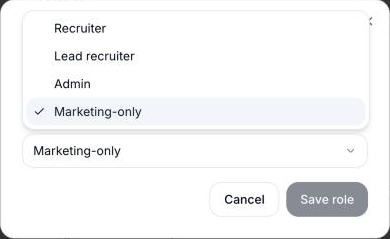
Go to Admin → Recruiters and open the Members & invitations tab.
Find the person under Members.
Click the actions menu (⋯) next to their name and select Change role.
Choose the new Role and click Save role.
You cannot change your own role, and you cannot change or remove the last Admin.
Best Practices
Give each person the lowest role that lets them do their job. Most site staff should be Recruiters.
Keep at least two Admins so you are never locked out of settings.
When someone changes sites or studies, update their assignments rather than raising their role.
Use Marketing-only for agencies that need campaign results but should not see patient details.