RealTime <> Delfa Status Mappings
Last updated: October 19, 2026
Patient-Study Assignment Statuses
Note: RealTime has both “Recruitment” and “Enrollment” statuses. RealTime does not support updating Enrollment status via the API. When pulling a patient from RealTime, the Enrollment status takes priority over the Recruitment status. When pushing a patient from Delfa to RealTime, only Recruitment statuses are pushed.
Once a subject is Enrolled in RealTime, RealTime locks their Recruitment status. Delfa still pushes the rest of the patient’s information, but the Recruitment status in RealTime stays as it is.
Default Patient-Study Assignment Statuses
The following is a table of how Delfa patient-study assignment statuses map to RealTime’s list of standard Recruitment and Enrollment statuses.
Delfa Status | Meaning | Delfa → RT (Push) | RT → Delfa (Pull) |
Pending | The patient has been assigned to the study, but outreach to prescreen hasn’t started yet (probably waiting for business hours). | Pending → (Recruitment) Not Contacted | (Recruitment) Not Contacted → Pending |
In Progress | Active outreach to prescreen is happening. | In Progress → (Recruitment) Contact Attempt 01* | (Recruitment) Contact Attempt 01, 02, 03 (any Contact Attempt status) → In Progress |
Needs Follow Up | The patient needs a follow-up before prescreening can be completed. | Needs Follow Up → (Recruitment) Follow-up | (Recruitment) Follow-up → Needs Follow Up |
Not Interested | The patient was reached and said they are not interested in this study. | Not Interested → (Recruitment) DNQ - Not Interested | (Recruitment) DNQ - Not Interested → Not Interested |
Potentially Qualified | Prescreen answers indicate the patient is potentially eligible. | Potentially Qualified → (Recruitment) Qualified for Screening | (Recruitment) Qualified for Screening → Potentially Qualified |
Potentially Unqualified | Prescreen answers indicate the patient is likely not eligible. | Potentially Unqualified → (Recruitment) DNQ - Criteria Not Met | (Recruitment) DNQ - Criteria Not Met → Potentially Unqualified |
Disqualified (Other Reason) | The patient does not qualify for a reason other than the prescreen criteria. | Disqualified (Other Reason) → (Recruitment) DNQ (Other) | (Recruitment) DNQ (Other) → Disqualified (Other Reason) |
Initial Visit Scheduled | A formal screening visit has been scheduled. | Initial Visit Scheduled → (Recruitment) Scheduled For SCREEN | (Recruitment) Scheduled For SCREEN → Initial Visit Scheduled |
In Screening | The patient is currently in the screening process, waiting for results | In Screening → (Recruitment) Enrolled | (Recruitment) Enrolled → In Screening |
Screen No Show | Screening was scheduled, but the patient did not attend. | Screen No Show → (Recruitment) No Show | (Recruitment) No Show → Screen No Show |
Screen Failed | Screening was completed and the patient did not pass. | Screen Failed → (Recruitment) DNQ - Criteria Not Met* | (Enrollment) Early Termination → Screen Failed |
Enrolled | Randomized | Enrolled → (Recruitment) Enrolled* | (Enrollment) Randomized → Enrolled |
Completed Study | Completed study | Completed Study → (Recruitment) Enrolled* | (Enrollment) Completed → Completed Study |
Canceled | A bit of a wild card, can be used at any point to indicate the patient dropped out at any point. Best to be used post-prescreening. | Not pushed. The Recruitment status in RealTime stays as it is. | (Enrollment) ICF Refusal → Canceled |
Transferred | The patient was moved to another study or site. | Not pushed. The Recruitment status in RealTime stays as it is. | — |
Unreachable | A patient was called many times (usually 5 depending on the cadence) for a prescreening but did not answer any texts or calls. | Unreachable → (Recruitment) DNQ - No Response | (Recruitment) DNQ - No Response → Unreachable |
If a RealTime status has no mapping, the patient is set to Pending in Delfa. This applies to both Recruitment and Enrollment statuses.
Custom Status Mappings
We understand that RealTime supports the addition of custom statuses in your RealTime instance. To support your custom statuses, Delfa can host a custom mapping for your organization. We expect admin(s) in your team to keep this mapping updated and correct.
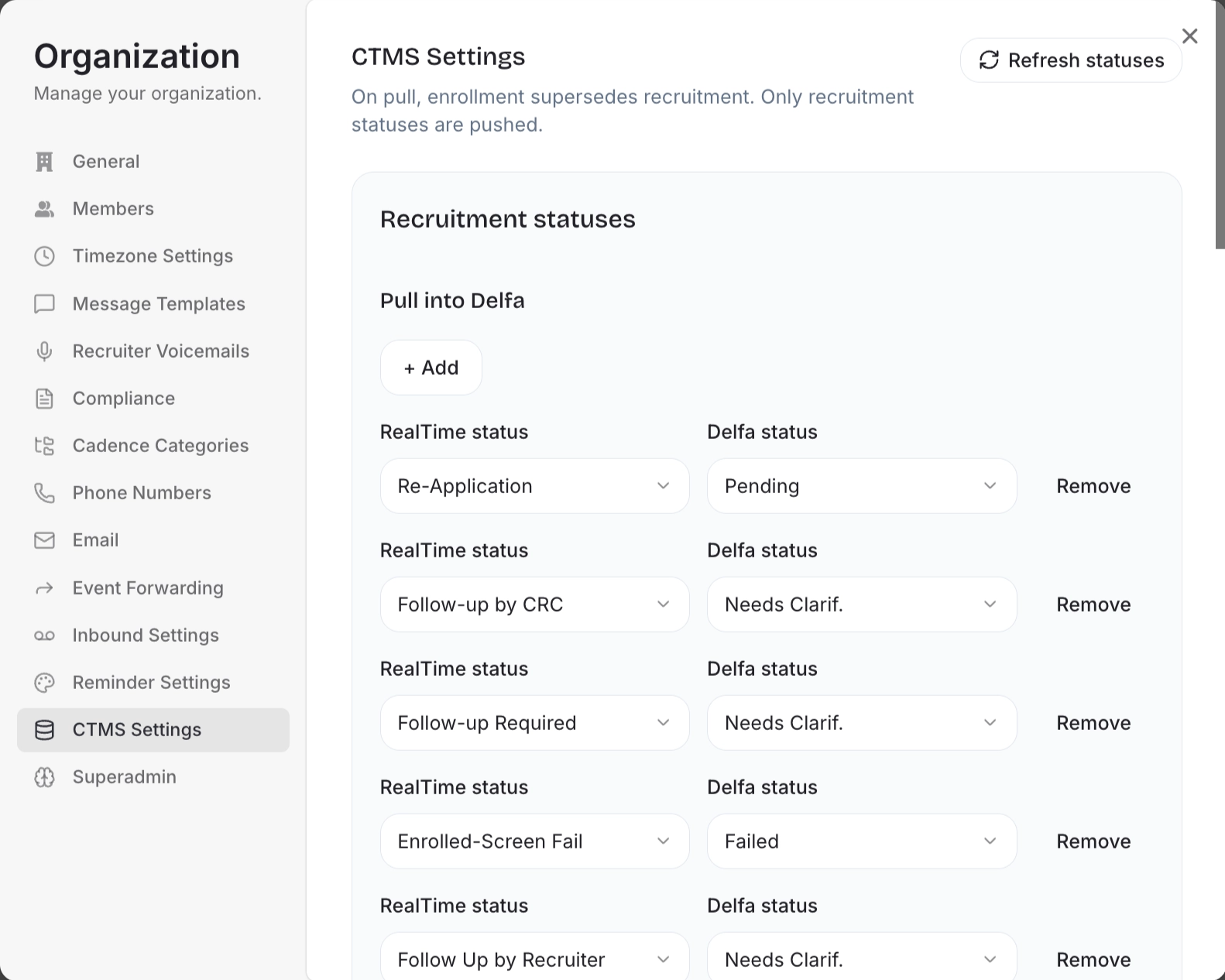
To manage this mapping, admins click the name of their organization in the top right corner and then click Manage. In the modal, go to CTMS Settings. Only admins see this page.
The Study statuses tab has three panels: Recruitment statuses, Enrollment statuses and Study statuses.
Under Pull into Delfa, click + Add and choose a RealTime status and the Delfa status it maps to.
Under Push to RealTime, choose which RealTime status each Delfa status is pushed as. Push mappings exist only for Recruitment statuses.
For an Enrollment status, choose None (use recruitment) to ignore it and use the Recruitment status instead.
Click Remove to delete a mapping. Statuses you do not map use the defaults, listed under Pull defaults and Push defaults.
Click Refresh statuses to load new statuses added in RealTime.
Changes save automatically.
Study Statuses
Delfa Status | RealTime Status |
|---|---|
Active | Enrolling |
Startup | Upcoming |
Paused | Inactive |
Completed | Enrollment Closed |