Cadence Process
Last updated: October 19, 2026
Overview
Cadences are automated outreach sequences. A cadence can send SMS and email, place AI agent calls, wait, create recruiter tasks, and push the patient to your CTMS. Recruiters start cadences for one patient, for many patients at once, or on a schedule from a live group. Lead recruiters create and edit cadence definitions.
Open Cadences in the sidebar. The page has three tabs: Executions, Scheduled and Definitions.
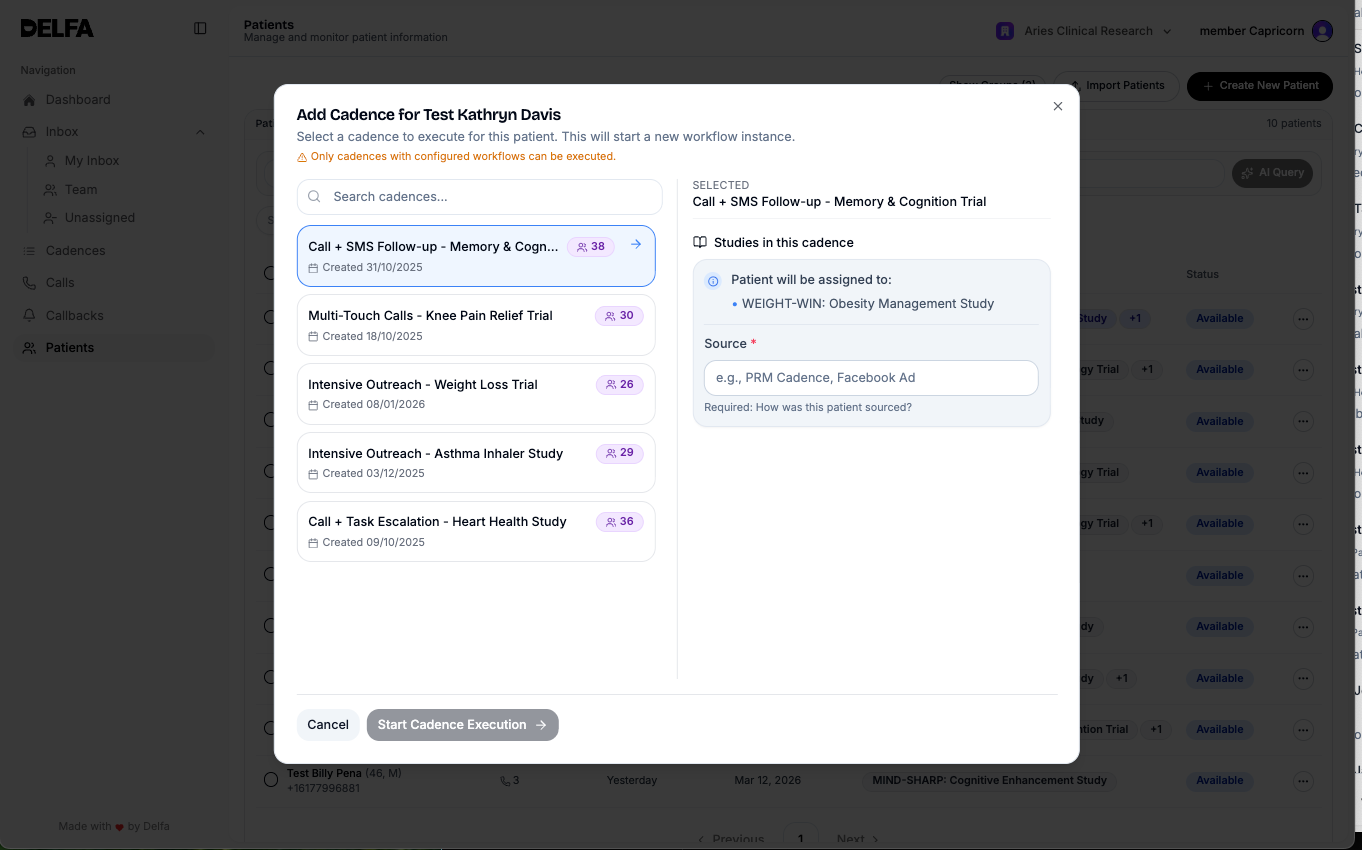
Starting a Cadence for One Patient
Open the patient's profile and click Add to Cadence. If the patient already has cadence history, open Cadence Actions and choose Add to Cadence. You can also click Add Cadence on the patient's row in Patients or in the Inbox conversation.
Search for the cadence. Use Filter by category to narrow the list.
Resolve any checks shown in the dialog (see below).
Click Start Cadence Execution.
Cadence Start Checks
Study Assignment Source: required if the cadence assigns the patient to studies. Choose a source from Select source, or enter one manually if no standardized sources exist.
Phone number: a cadence with a call requires a phone number. If the patient is a minor, the next of kin's phone number is required instead. Click + Add phone number to add one.
Skip SMS if it cannot be delivered: shown when the cadence includes SMS. When checked, an SMS that cannot be delivered is skipped and the cadence continues. If the patient has no phone number and the cadence only texts, check this box or add a number.
Email: if the patient has no email address, click + Add email address or check Or proceed without email.
Consent: you cannot start a cadence with email or call steps if the patient has revoked consent for that channel. You cannot start any cadence for a patient marked Do Not Contact.
Personalized agents: if the cadence uses a personalized agent, assign the patient to at least one active study first.
Inactive studies: if the patient is screen scheduled, in screening or enrolled for an inactive study, confirm before you start.
Dynamic Variables (required): fill in every required value.
Bulk Cadence Enrollment
Open Patients and select the patients.
Click Bulk Actions and choose Enroll in Cadence.
Select the cadence, then enter the study assignment source and dynamic variables if required.
Choose the enrollment options:
Skip email nodes for patients without email
Skip SMS if it cannot be delivered
Skip patients previously enrolled in this cadence
Skip patients with scheduled, in screening and enrolled statuses even if study is inactive
Click Enroll N Patients. Track progress in Cadences.
Scheduling a Cadence from a Live Group
A schedule enrolls patients from a live group on a repeating basis. Before each run, Delfa checks the group's current filters, so new patients who match are picked up.
In Cadences, click Schedule cadence and choose a live group. You can also choose Schedule cadence from the group menu in Patients.
Select the cadence and the same enrollment options as bulk enrollment.
Set Patients per run to Fixed number (with a Batch size) or All currently eligible.
Set Run every (hours), how many days to run for, and Starting at. Check the First run preview, which uses your organization's timezone.
Click Create schedule.
Runs only happen on days your organization's hours allow agents to call. You cannot create a schedule if no calling days are configured.
Scheduled Tab
Each schedule shows its group, cadence, frequency, progress (processed, skipped and failed), status and next run.
Statuses: Scheduled, Running, Paused, Completed, Completed with issues, Canceled.
You can pause, resume or cancel a schedule. A run already in progress finishes. You cannot edit a schedule while a run is in progress.
You cannot delete a live group or a cadence while an active schedule uses it.
Reviewing Cadence Executions
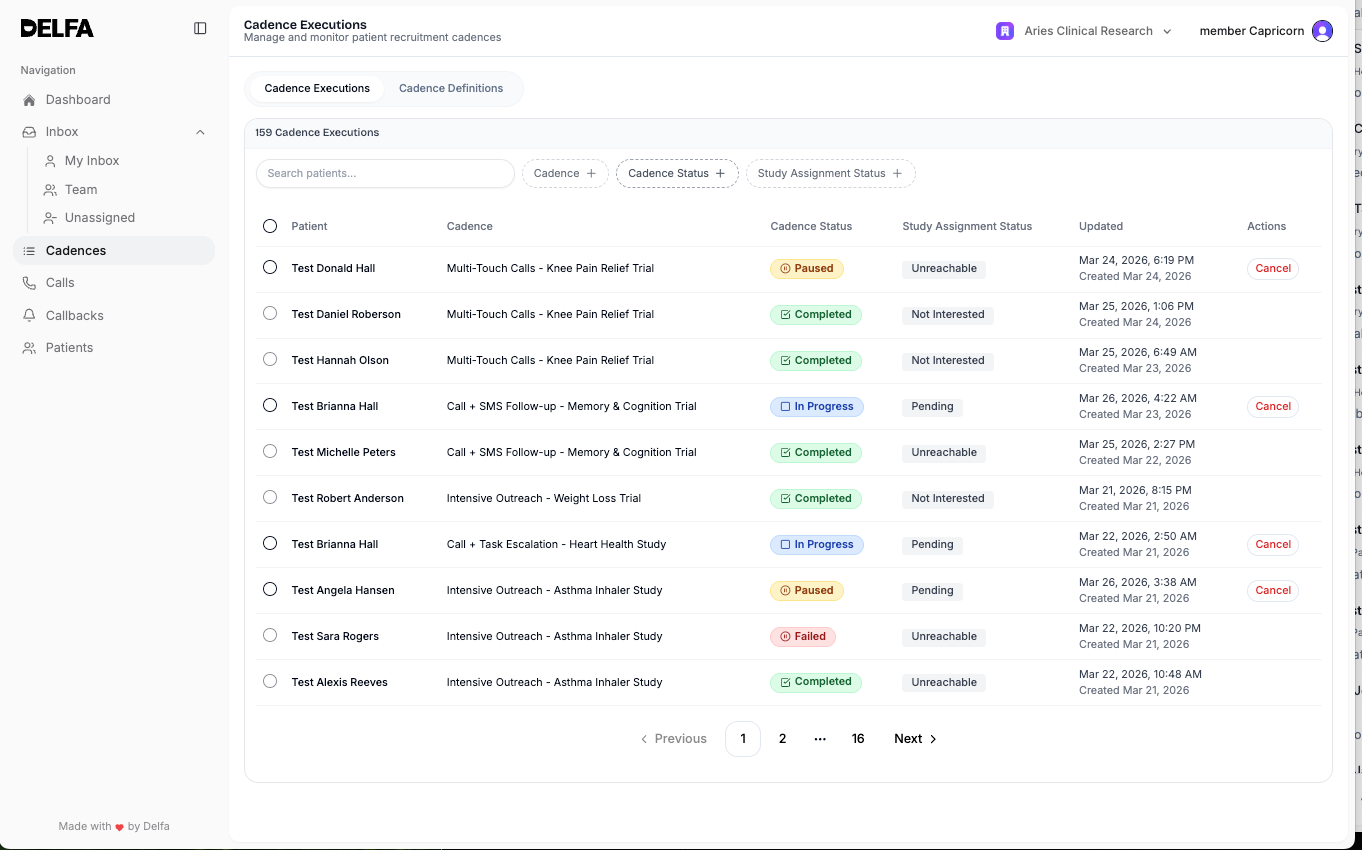
The Executions tab lists every patient enrolled in a cadence, with their status and study assignment status.
Filters
Category (select one or more)
Cadence
Cadence Status: Enrolled, In Progress, Paused, Completed, Failed or Canceled
Study Assignment Status
Patient search
A cadence is paused while the patient is texting with the cadence's SMS agent.
Canceling Cadences
For one patient, open Cadence Actions on the patient's profile and choose Cancel Cadence, or click Cancel Cadence in the Inbox conversation.
For several patients, select them on the Executions tab and click Cancel Selected. You can select all executions that match your filters, not just the current page.
Delfa also cancels a patient's active cadence when the patient calls in or revokes consent.
Cadence Definitions
The Definitions tab lists your organization's cadences with their category and the number of executions started in the past 30 days. Filter by Category or search by name. You can duplicate or delete a cadence from the list. A cadence used by an active schedule cannot be deleted.
Creating and Editing a Cadence
Only lead recruiters can create and edit cadences. Other users can open a cadence read-only.
On the Definitions tab, click Create Cadence.
Build the flow from nodes, or click Gold standard to start from Delfa's recommended cadence. This replaces any unsaved changes on the canvas.
In Cadence Settings, choose the SMS agent, the Category and whether to Generate recruiter callbacks.
Save the cadence.
Nodes
Lead Enrolled in Cadence: the starting point.
Send SMS and Send Email (with optional attachments).
Start Call: an AI agent call. All call nodes in a cadence use the same voice agent. Branch on Connected, Qualified, Unqualified, Not Prescreened or Not Connected.
Wait: pause for a set duration, with optional jitter.
Schedule Task: create a Call, SMS or Email task for a recruiter, due in a set number of days.
Push to CTMS: push the patient to your organization's CTMS using your interaction logging settings.
Send Webhook
Cadence Settings
SMS agent: handles the patient's replies. The cadence pauses while the patient is talking to the agent.
Category: groups the cadence so recruiters can filter by it. Categories are set up in organization settings. See "Can I organize cadences into groups?".
Generate recruiter callbacks: on by default. Agents in this cadence can create callback tasks for recruiters. Turn it off if the agent already books prescreening calls, or your team cannot follow up on callbacks.
Follow-up Cadences after Voicemail Drops
You can start a cadence automatically after a recruiter voicemail drop is delivered. Open Voicemail Drops from your profile menu, click the cadence button on a voicemail, and choose a follow-up cadence. You can also choose one when you drop a voicemail during a call.
Best Practices
Check contact details, consent and study context before you start a cadence.
Use clear study assignment sources whenever the cadence creates study assignments.
Check Failed and Paused executions regularly.
Cancel an outdated cadence before you start a new one for the same patient.
Assign every cadence a category so recruiters pick the right one.