Study Eligibility Questionnaires
Last updated: October 19, 2026
Purpose: This document is intended to provide an overview of how lead recruiters can build eligibility questionnaires for a study, how eligibility rules control which questions get asked, and how recruiters fill out the questionnaire during a call.
Overview
An eligibility questionnaire is the pre-screening script per study. Lead recruiters build and edit it; all recruiters fill it out during patient outreach.
Recruiters see a read-only Questionnaire Preview. You can try the questionnaire and review the full eligibility tree, but you cannot change it.
The questionnaire has two parts:
Questions: what the recruiter asks the patient.
Eligibility Rules: the pass/fail criteria applied to those answers.
Rules are grouped, with one group per branch of a conditional criterion. The rules decide both whether a patient is eligible and, along the way, which questions are worth asking.
Building a Questionnaire
1. Open the study from the Studies page.
2. Select the Eligibility Questionnaire tab.
3. Enter your criteria (see Writing Source Text below).
4. Select Auto-generate.
5. Review the generated questions and the Eligibility Rules section.
6. Select Save Changes.
Important: Auto-generate Saves Immediately
Auto-generate is not a draft. It replaces the study's live questionnaire as soon as it finishes, before you press Save Changes. To undo it, restore an earlier version from Version history (see below).
Any unsaved questionnaire edits are discarded. Questions you added, renamed, or reordered, and eligibility rules you built by hand, are replaced by the generated set.
Recruiters opening the study after you generate will see the new questionnaire, even if you never press Save Changes.
Changes to other study fields are not saved by generating. Name, Eligibility Criteria, and other fields still need Save Changes.
Generation can read the Eligibility Criteria box before it is saved, so the questionnaire may be generated from criteria text that is not yet stored on the study. Save the study if you want the criteria and the questionnaire to match.
Because of this, generate first and edit second. If you already have a questionnaire you want to keep, use Apply a targeted change instead of Auto-generate.
Apply a Targeted Change
To change part of a questionnaire without regenerating it, describe the change in Apply a targeted change and select Apply change. Questions you already reviewed stay unless the change affects them. The result is a draft. Review it, then select Save Changes to keep it.
Version History
Version history lists every saved version of the questionnaire and who made it. To go back, select Restore on a version and confirm. Restoring replaces the saved questionnaire right away and discards unsaved edits in the tab. This also undoes an Auto-generate you did not want.
Writing Source Text
Auto-generate reads from one of two places:
The Eligibility Criteria field on the Screening Criteria tab, which is the default source.
The Questionnaire Source Text (Optional) box on the Eligibility Questionnaire tab, which takes precedence when filled in. This text is only used for generation and is not saved to the study.
The study must be saved before you can generate.
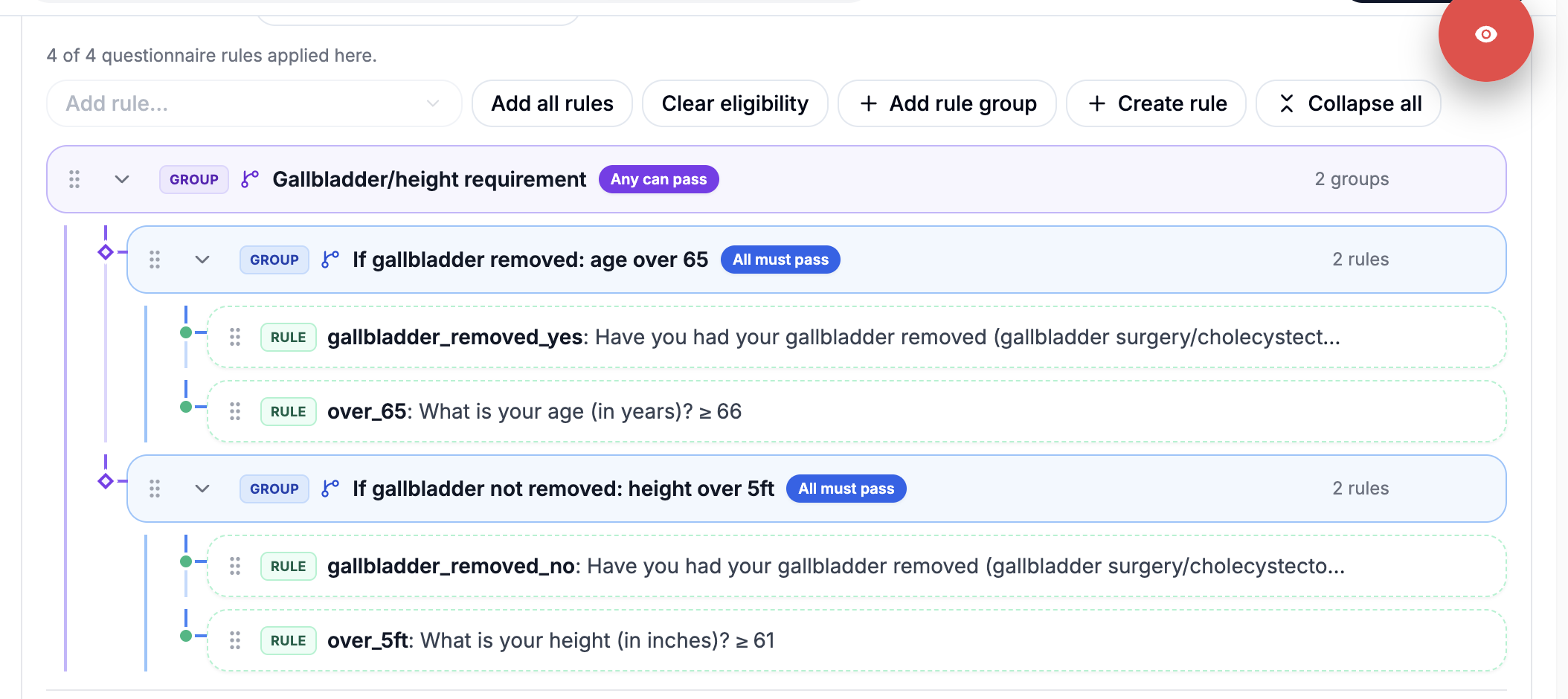
"If / else" criteria become branching questions. For example:
If they had their gallbladder removed, they must be over 65.
Else, they must be over 5ft
This produces a question asking whether the gallbladder was removed, and then checks a different eligibility criterion depending on the answer.
Guidance for writing source text:
Write criteria the patient can answer about themselves. Criteria that require labs, scans, or chart review are intentionally left out of the questionnaire.
Use plain "if / else" or "unless" phrasing for conditional criteria so the branch is unambiguous.
Keep inclusion criteria first and exclusion criteria second. Generated question order follows the order of your source text.
Write each shared fact once. Age, sex, and weight are asked a single time and reused across branches.
Eligibility Rules
Rules and their groups live in the Eligibility Rules section. Auto-generate populates this for you, and you can edit or add to it by hand; we recommend starting with auto-generation rather than building from scratch.
Grouping and branching
The Match setting at the top controls the whole questionnaire: All must pass, or Only one needs to pass.
A rule group is one branch of an "if / else". Each group has its own Match setting: All must pass, or Any can pass.
Every group must contain at least one rule. A study cannot be saved while any group is empty.
Creating and placing rules
Rules are created per question (Create rule, or Add rule from within a question), then placed into the tree using Add rule… or by dragging them.
Calculated fields let rules target values that aren't asked directly: BMI from a height and weight question, age from a date of birth, or a simple arithmetic expression.
Required for qualification marks a rule or group as one the patient must actually answer. For rules inside a group, this is controlled by the group's Required switch rather than per rule.
After generating, watch for a Some generation rules were skipped message. If it appears, review the eligibility rules and add the missing criteria manually.
Ineligible submissions are still recorded. The patient is marked prescreen unqualified rather than being discarded.
Managing Questions
Questions default to optional. Use the Required switch on a question to make it mandatory.
Auto-generate produces yes/no, number, select, and short text.
Note that you can reorder the questions in the eligibility questionnaire by dragging and dropping.
Select questions need at least one option. If a select question has no options, you cannot save it in the Edit question dialog. Save Changes is also blocked and names the question that needs options. Add an option or remove the question, then save again.
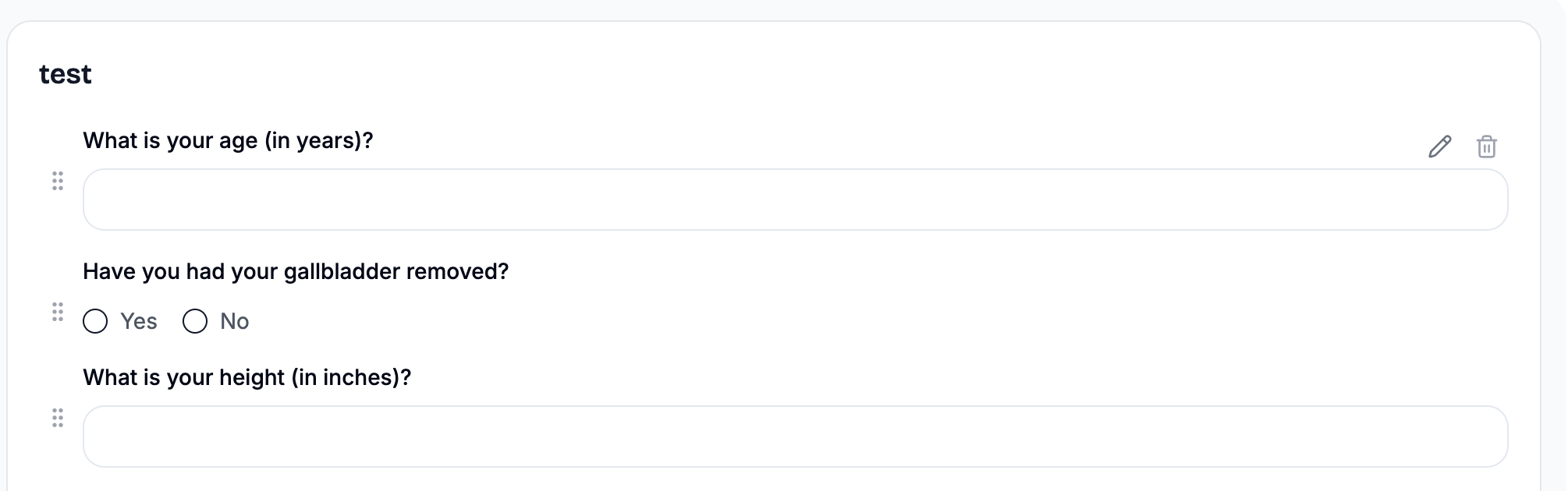
Conditional visibility lets a question hide once its branch is ruled out. It only does anything if the question's rules sit inside a group.
Editing and saving a questionnaire creates a new version. Patients who already have answers keep the version they were screened against.
If someone else saved the questionnaire while you were editing it, your save is refused. Reload the page and make your changes again.
Select Export CSV to download the questions and eligibility rules as a spreadsheet.
The Questionnaire column on the studies list shows how many questions and required rules each study has. Not configured means the study has no questionnaire yet.
Filling Out the Questionnaire During a Call
When you fill out the questionnaire during a call, irrelevant questions are hidden.
In the gallbladder example, answering "Yes" to "gallbladder removed" hides the height question:
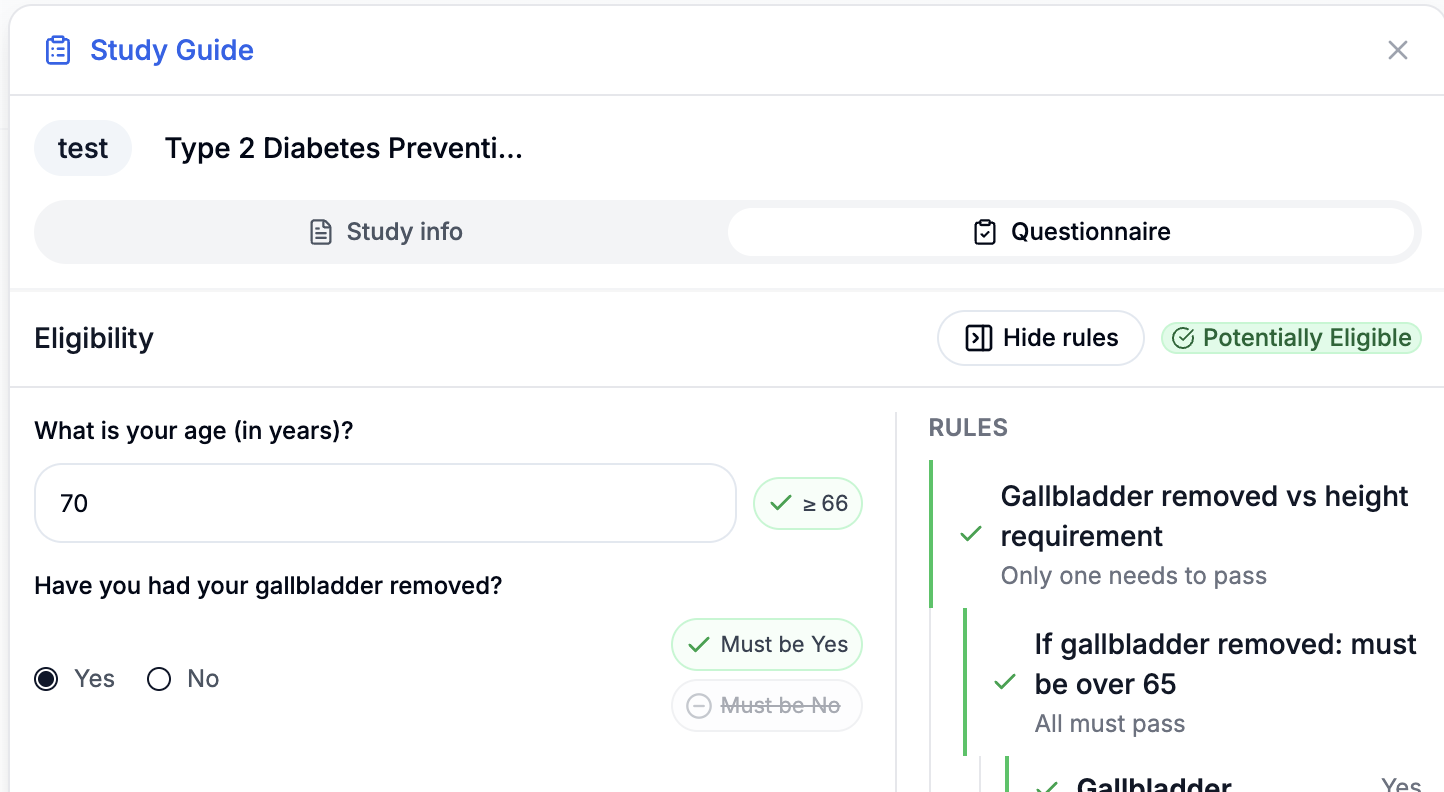
Open the questionnaire from the study guide on the call screen, the floating call widget, or the patient's study assignment card.
Name, phone, sex, and date of birth are prefilled from the patient record where available, and age is calculated from date of birth.
By default you can see the eligibility rules being evaluated as you type: Potentially Eligible, Not Eligible, or Awaiting answers, along with per-rule Passed, Failed, and Pending states.
Answers are auto-saved as drafts during an active call. When the patient has answered, select Process answers to save the responses and record the eligibility result.
Questions that already have an answer stay visible even if later answers rule out their branch, so nothing you have recorded disappears.
If the study's questionnaire has changed since the patient was screened, a notice indicates you are viewing their saved snapshot, and edits are saved against that version.
Reviewing Questionnaire Results
To see where patients drop out, open Studies and select Breakdown. Choose a study, or all studies, to see how many patients answered each question and how many failed it. Select a row for details on that question. Select Edit Questionnaire to go straight to the study's questionnaire.
Best Practices
Start with "Auto-generate", then review every generated question and rule before saving.
Remember that "Auto-generate" overwrites the live questionnaire immediately, so run it before hand-editing, not after.
Review the "Eligibility Rules" tree after generating and confirm each branch matches the intent of the protocol.
Keep questions patient-friendly and self-reportable.
Reorder questions to match the natural flow of the call, not the order the protocol happens to list them in.
Avoid editing a live questionnaire mid-campaign unless needed, since new versions change what subsequent recruiters see.