Recruiter Site and Study Assignments Process
Last updated: October 19, 2026
Purpose: This document is intended to provide an overview of how administrators assign recruiters to sites and study-site combinations from the Recruiters page in the PRM, including how those assignments affect recruiter filtering and visibility throughout the product.
Process
The Recruiters page is used to control which recruiters are linked to each site and which recruiters are responsible for specific study-site combinations. These assignments determine operational ownership and help control which patients, studies, and conversations a recruiter sees in My Inbox and other recruiter-scoped PRM views.
Overview
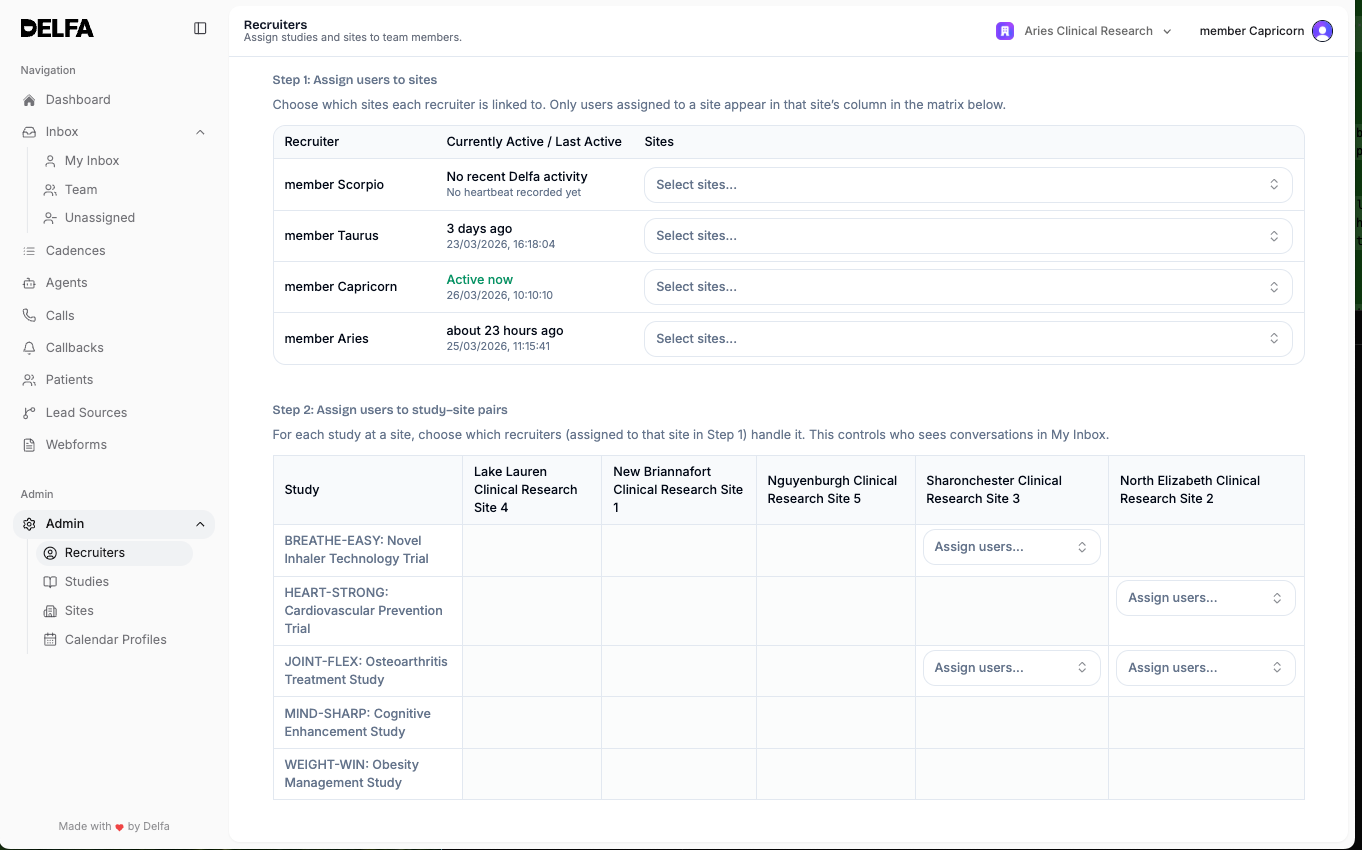
Open Admin → Recruiters. Admins and lead recruiters can open this page. It has three tabs:
- Activity: the recruiter roster, including each recruiter's sites and inbound call settings.
- Workload & assignments: the study-site assignment matrix. Admins also see a Recruiter workload table here.
- Members & invitations: organization members and pending invitations.
Admins land on Workload & assignments by default and everyone else lands on Activity. After that, the page reopens the tab you used last.
Assignments are made in two steps:
1. Assign users to sites on the Activity tab.
2. Assign users to study-site pairs on the Workload & assignments tab, in the Study-sites section.
Both steps should be reviewed together. A recruiter must be assigned to a site before they can be assigned to studies at that site.
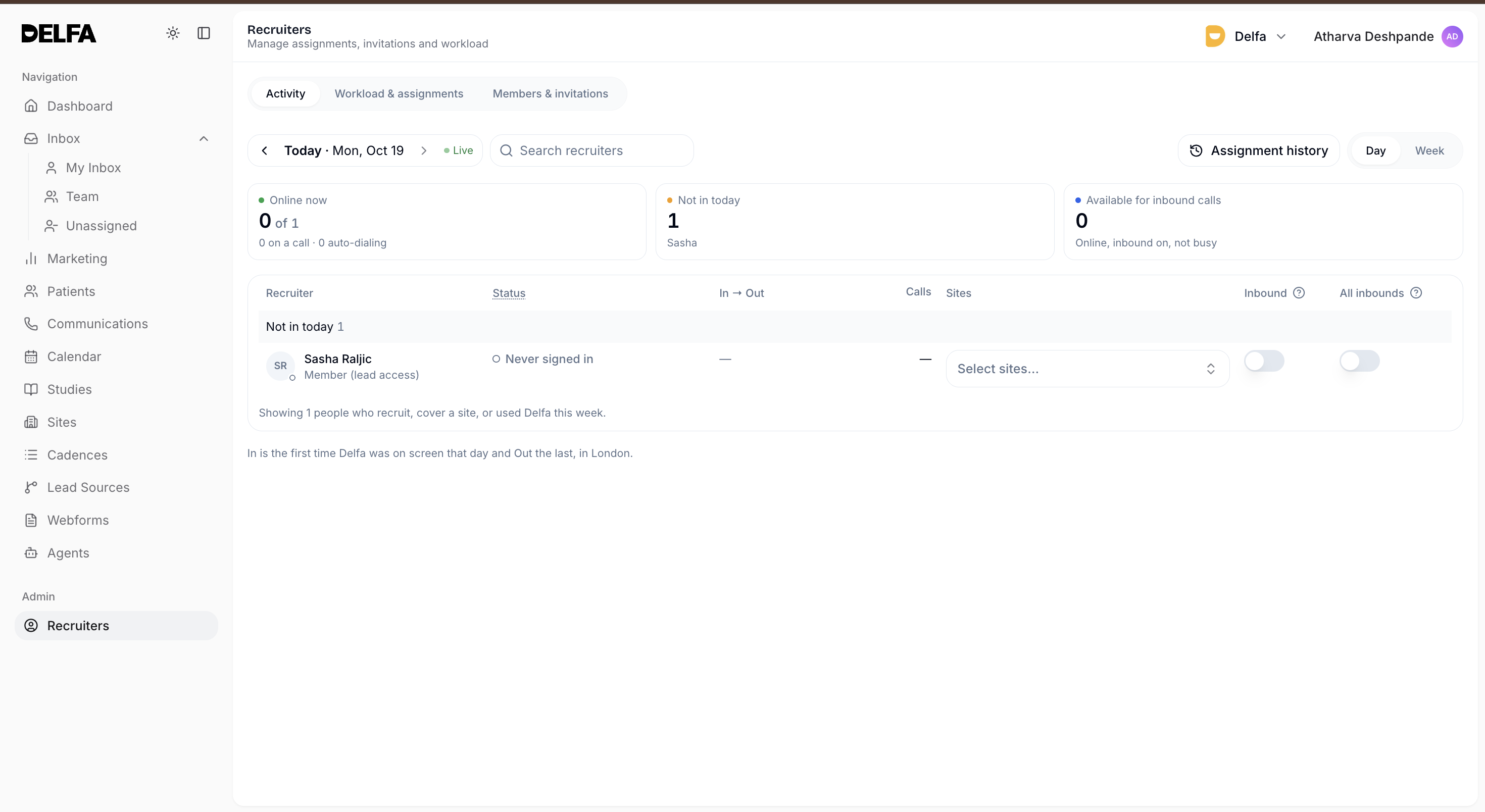
Step 1: Assign Users to Sites
Purpose of Site Assignment
- Site assignment determines which sites a recruiter is linked to.
- Only users assigned to a site will be available in that site’s column in the study-site assignment matrix.
- Site assignment also limits which site-related work can be routed to that recruiter elsewhere in the PRM.
How to Assign Sites
1. Open Admin → Recruiters and select the Activity tab.
2. Find the recruiter. You can use Search recruiters.
3. Use the Sites selector in that recruiter's row.
4. Add or remove sites as needed. Changes save immediately.
Removing a site also removes that recruiter's study-site assignments at that site.
Recruiter Information Shown
- Recruiter: name
- Status: current status, such as Online
- In → Out: first and last time on Delfa for the selected day
- Calls: voice calls for the selected day
- Sites: assigned sites
- Inbound and All inbounds: inbound call settings
Use Day and Week to switch the attendance view.
When to Update Site Assignments
- When a recruiter starts covering a new site.
- When a recruiter should no longer work a site.
- When site staffing changes due to schedule, coverage, or organizational updates.
Step 2: Assign Users to Study-Site Pairs
Purpose of Study-Site Assignment
- Study-site assignment determines which recruiters handle a specific study at a specific site.
- This controls who sees related conversations in My Inbox.
- This also helps control which patient and study records appear to that recruiter in recruiter-scoped views across the PRM.
How to Assign Study-Site Coverage
1. On the Recruiters page, select the Workload & assignments tab.
2. Go to the Study-sites section. Studies are rows and sites are columns.
3. Find the study row.
4. Find the correct site column.
5. Use the assignment selector in that study-site cell.
6. Add or remove the recruiters who should handle that combination.
Filtering the Matrix
- Use Study status, Site status, Sites, and Studies to narrow the matrix.
- Turn on Hide empty rows & columns to hide studies and sites with no study-site pairs.
- Select Reset filters to return to the full matrix.
- Select Assignment history to review past assignment changes.
Important Assignment Rule
- Only recruiters assigned to that site can be selected. If a recruiter does not appear in a study-site assignment selector, assign them to that site on the Activity tab first. If no one is assigned to the site, the selector shows Assign user to site first.
Assign User to All Studies at a Site
- Use Assign user to all at the top of a site column when one recruiter should be assigned across all studies at that site.
- It assigns the recruiter only to the studies currently visible in that column. Clear your filters first if you want every study at the site.
- Review the site column before using this option so the assignment is appropriate for every listed study.
Blank Cells in the Matrix
- A cell showing — indicates that the study is not assigned to that site.
- Site-study setup must exist before recruiter assignments can be made in that cell.
Operational Impact
My Inbox
- Study-site assignments control which recruiters see related conversations in My Inbox.
- If a recruiter is not assigned to the correct study-site combination, the related patient conversation may not appear in their My Inbox as expected.
Other PRM Views
- Site and study-site assignments act as visibility filters in other recruiter workflows, helping determine which patients and studies a recruiter sees when the PRM is showing recruiter-scoped work.
- These assignments help ensure recruiters are looking at the patients and studies they are actually responsible for, rather than all patients and all studies across the organization.
- If visibility looks incorrect in recruiter-facing workflows, review site assignment first and study-site assignment second.
Coverage
- Use site assignments to control eligibility for assignment.
- Use study-site assignments to define the actual operational owner for each study at each site.
Recruiter Workload
- Admins see a Recruiter workload table at the top of the Workload & assignments tab.
- It shows Patients in inbox and inbox workflow stages for each recruiter and for the unassigned inbox. Expand a row for a breakdown by study.
- Select Export CSV to download the table.
- To review recruiter call activity and conversion rates, use the Productivity tab on the Dashboard. See the Dashboard and Reports article.
Best Practices
- Assign sites on the Activity tab before assigning study-site pairs.
- Review site assignments whenever a recruiter’s coverage changes.
- Review study-site assignments whenever a study launches, pauses, completes, or changes site coverage.
- Use Assign user to all only when the recruiter should truly cover every study at that site.
- Confirm Recruiters, Sites, and Studies are set up correctly before troubleshooting Inbox visibility.
- When a recruiter reports missing patients, missing studies, or missing Inbox conversations, verify their site and study-site assignments before investigating other causes.