Message Templates Process
Last updated: October 19, 2026
Overview
Message templates are your organization's default SMS and email content. When a recruiter starts a new SMS or email to a patient from the Inbox, Delfa pre-fills it from these templates. Placeholders fill in patient, study, site and recruiter details automatically. Cadence messages are set in each cadence, not here.
Opening Message Templates
Open the organization switcher and click Manage.
Select Message Templates.
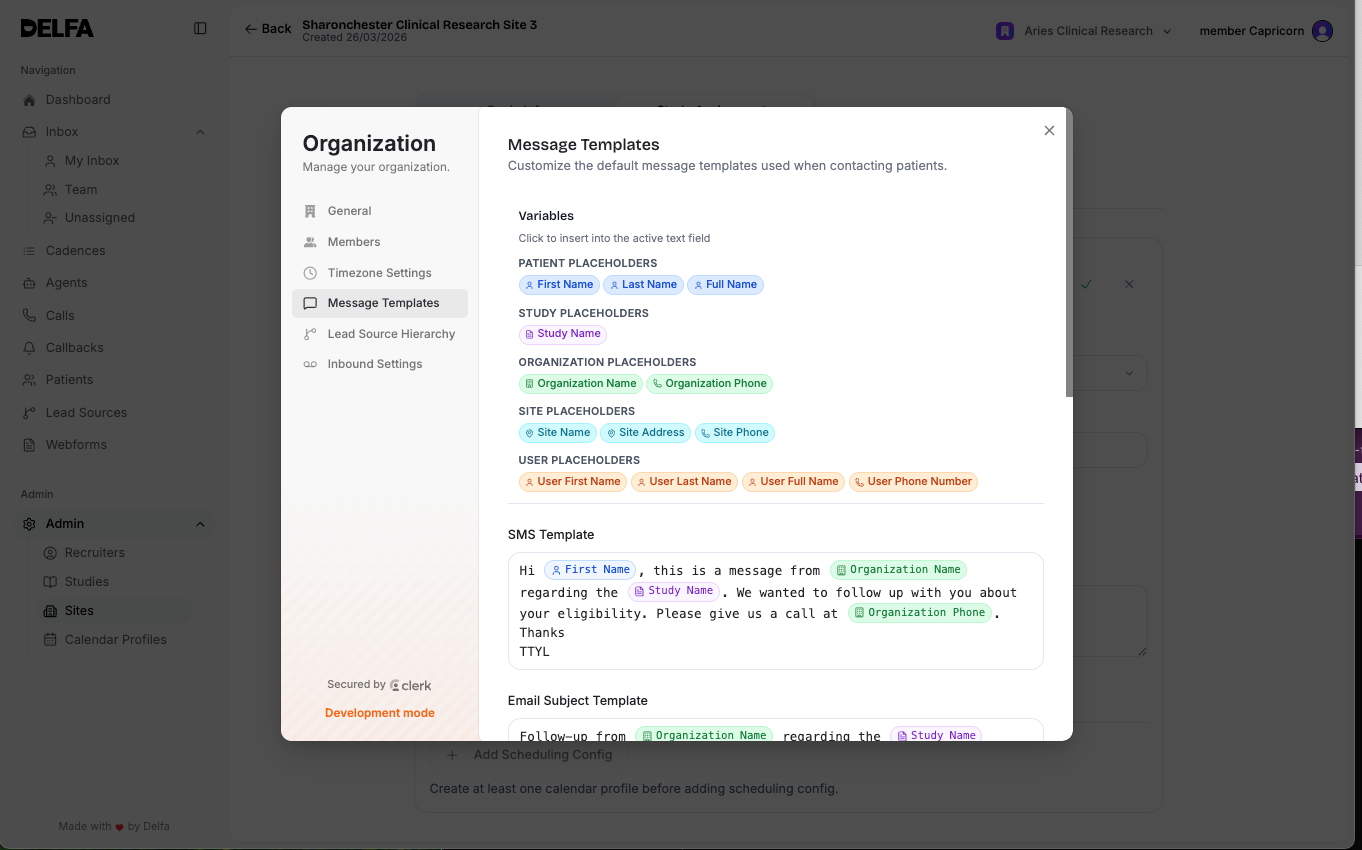
Editing Templates
Edit the template you want to change.
Insert placeholders where patient, study, site, organization or recruiter details should appear.
Review the wording. Changes save automatically.
Template Types
SMS Template: the default text for a new SMS.
Email Subject Template: the default subject line for a new email.
Email Body Template: the default email body. Use Attachments to attach the study ICF file or study fact-finding file by default.
Email Signature: added to emails and replies you write in the Inbox. You can include images. It is not added to cadence emails.
Placeholders
Group | Placeholders |
|---|---|
Patient | First Name, Last Name, Full Name, Next of Kin Name |
Study | Study Name, Study Visits, Study Length, Study URL |
Organization | Organization Name, Organization Phone |
Site | Site Name, Site Network, Site Address, Site Phone |
User | User First Name, User Last Name, User Full Name, User Phone |
If a template uses study or site placeholders, choose the patient's study and site assignment when you write the email.
Resetting Templates
Reset to Defaults restores the system defaults and saves straight away.
Confirm with your site lead before replacing customized content.
Best Practices
Keep wording general enough to work for any patient.
Use placeholders instead of typing names, studies, phone numbers or recruiter details.
Check how the email body and signature look before relying on them.
Update templates centrally rather than asking each recruiter to write their own.