Can I view or switch between studies in the study guide during a call?
Last updated: October 19, 2026
Context
During a call, you may need to reference multiple studies for a patient — for example, if a relevant medical condition comes up mid-call and you want to pre-screen for an additional study, or if you joined the call with the wrong study selected.
Answer
If a patient is assigned to more than one study, the Study Guide panel on the call screen shows a tab for each study, labelled with the study name. Select a tab to switch studies. If the study has a questionnaire, use Study info and Questionnaire to move between the guide and the questionnaire. If not all tabs fit, scroll the tab row sideways or drag the panel edge to make it wider.
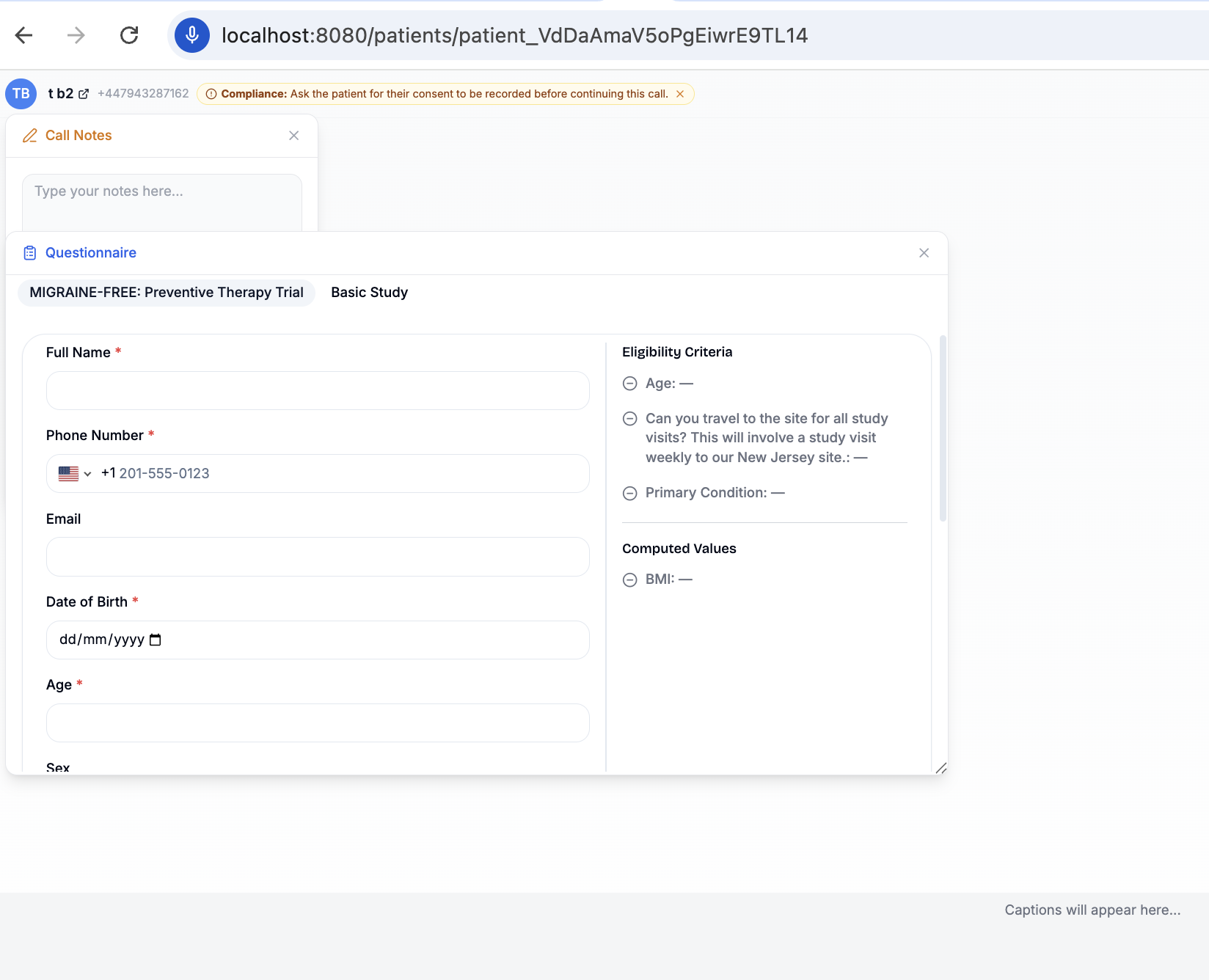
You can also add a new study during the call, for example to pre-screen for a study that becomes relevant during the conversation. You don't need to end the call.
Select the Patient profile button on the call screen.
In the Patient Profile panel, select Assign Studies.
Choose the study, the site, and the source, then select Assign Studies.
The new study appears as a tab in the Study Guide panel within about 10 seconds.